Navigating
A set of navigation tools are available for you to find and display the areas of the report you want to review.
Navigate Between Pages
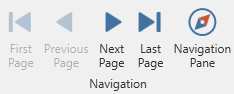
To navigate between document pages, use the scrollbars or navigation buttons on the Report Viewer's toolbar. These buttons allow you to switch to the first, previous, next, or last page of a document.
To navigate to a specific page of a document, enter the required page in the dedicated editor in the Print Preview's status bar.
Using the Navigation Pane
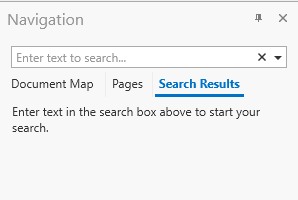 To toggle (on/off) the display of the Navigation Pane on the left side of the Report Viewer, click the Navigation Pane
 button on the Report Viewer's toolbar.
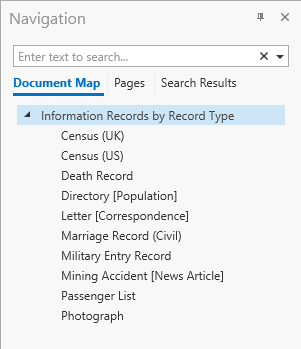 Use the Document Map to locate specific places in the report using bookmarks. Reports that group categories usually have bookmarks set for each of the grouped items. Most reports in Clooz have bookmarks, but not all.
Click on one of the bookmarks to move to the location in the report corresponding to that bookmark.
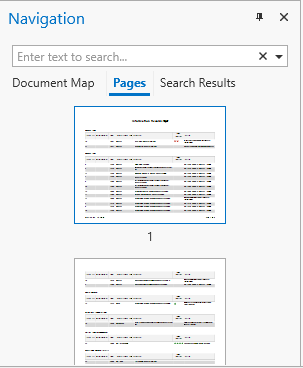 The Pages feature displays a thumbnail of each page of the report. Click on a thumbnail to go to that page in the report.
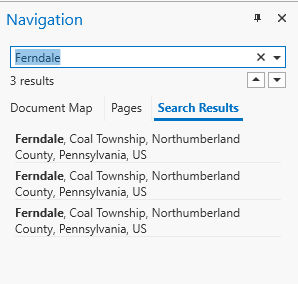 To search for a specific text throughout a document, enter it in the search box on the Navigation Pane. Then click on one of the search results to go to that place in the report.
Navigate Using the Hand Tool
The Hand Tool enables you to scroll content by dragging the report document instead of using scrollbars.
To activate the Hand Tool, right-click anywhere within the document, and in the invoked context menu, select Hand Tool.
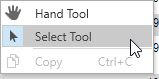
Then, after you click a document's page, the mouse pointer is changed from  to
to  (signifying you have grabbed the page). Drag the mouse pointer to scroll the report document and then release the mouse button after you have the report document positioned.